How to Add a Ranking Question in Google Forms (Multiple Choice Grid Method)
How to add a ranking question in Google Forms: there's no native ranking type, so use a multiple choice grid with ranks as columns, one response per column and a required answer in each row.
If you’re looking up how to add ranking question in Google Forms, here’s the short version: Google Forms has no dedicated “Ranking” question type. Google’s Help page on question types lists options such as multiple choice, checkboxes, dropdown, file upload and two grid types, but no ranking type (Google Docs Editors Help). The standard method is a multiple choice grid: the items to rank go in the rows, the ranks (1st, 2nd, 3rd…) go in the columns, and you turn on Limit to one response per column and Require a response in each row (Google Docs Editors Help).
The result works like a ranking: each item gets exactly one rank, and each rank can be used only once.
Quick answer
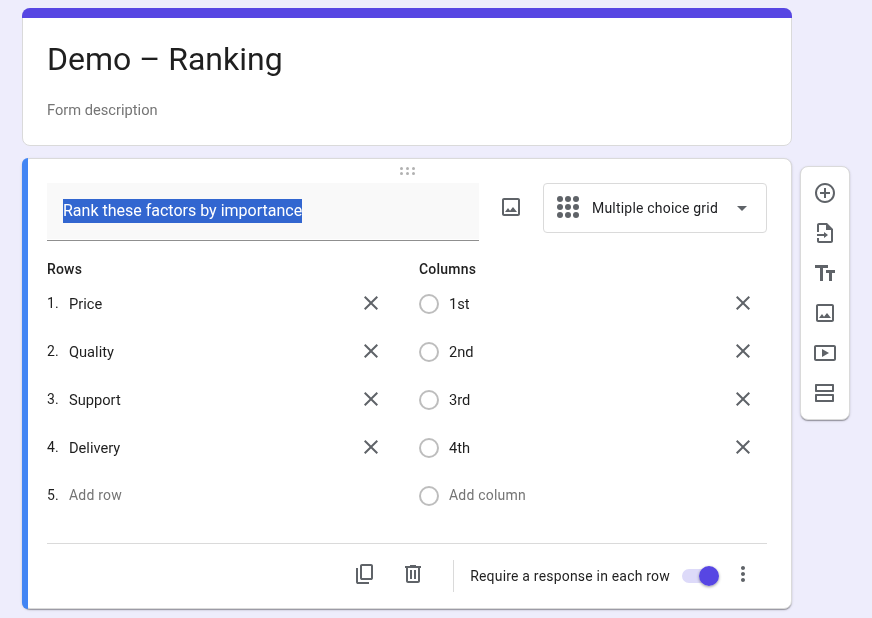
- Open your form in Google Forms and click Add question.
- To the right of the question title, choose Multiple choice grid.
- Under Rows, enter the items people should rank, one per line (for example Price, Quality, Support, Delivery).
- Under Columns, enter the ranks: 1st, 2nd, 3rd, 4th (as many ranks as items).
- Turn on Require a response in each row in the question footer.
- Click More (⋮) and check Limit to one response per column.
- Preview the form and try ranking the items to check it behaves as expected.
These settings are documented on Google’s page about rules for grid questions (Google Docs Editors Help).
Step by step: build a ranking question with a multiple choice grid
1. Create the grid
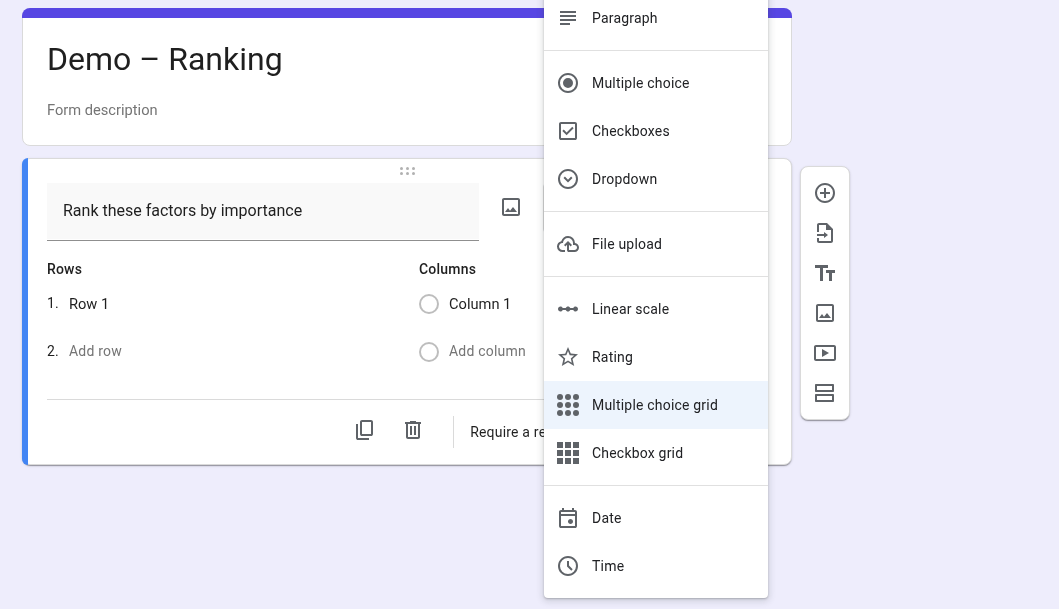
Open the form, click Add question (the plus icon on the right), and type your question, for example “Rank these factors by importance”. Then open the question-type menu to the right of the title and choose Multiple choice grid (Google Docs Editors Help). The menu has no ranking type; Rating is a separate type for scoring, not ordering.
If you haven’t used this question type before, our guide to the multiple choice grid in Google Forms covers every setting in detail.
2. Put the items in the rows
Each row is one thing to rank. In our example form, the rows are Price, Quality, Support and Delivery.
3. Put the ranks in the columns
Each column is a position: 1st, 2nd, 3rd, and so on. Two tips:
- Use as many columns as rows. With four factors, create four ranks: 1st, 2nd, 3rd, 4th. With fewer columns than rows, there won’t be enough ranks to go round when every row is required.
- Make the direction explicit. “1st = most important” in the question title or description avoids people ranking in reverse. To add a description, click More (⋮) and choose Description (Google Docs Editors Help).
4. Require a response in each row
Turn on the Require a response in each row toggle at the bottom of the question card. Google’s Help says that if responders skip a row, they get an error message and can’t continue (Google Docs Editors Help). This makes sure every item receives a rank.
5. Limit to one response per column
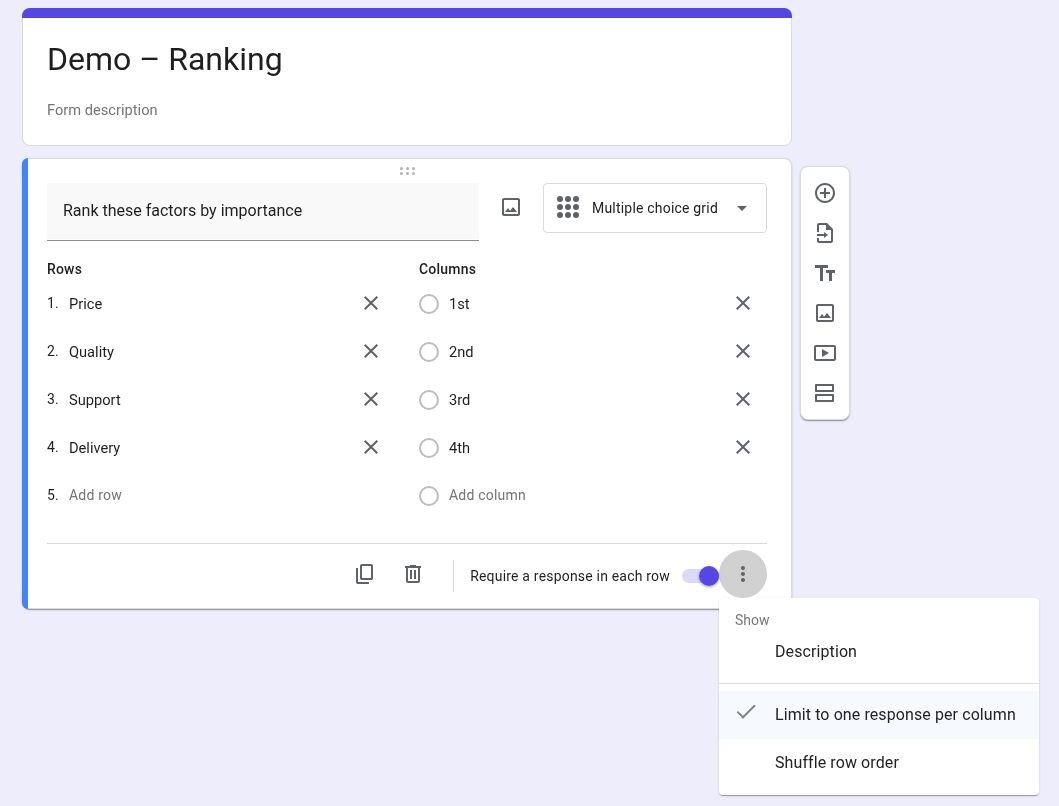
Click More (⋮, bottom right of the card) and check Limit to one response per column. This is the setting that turns a rating grid into a ranking (see the next section).
6. Optional: shuffle the rows
In the same More (⋮) menu, Shuffle row order shows the rows in a different order each time the form is opened (Google Docs Editors Help).
Why “Limit to one response per column” matters
Without this option, a multiple choice grid is a rating question: each row gets one answer, but several rows can share the same column. Someone could mark every feature “1st”, which tells you nothing about priorities.
With Limit to one response per column turned on, each column can be chosen in only one row. Google’s own example uses rows A, B, C and columns 1, 2, 3: responders choose one row item for each column, and if they check multiple rows in a column, they get an error message (Google Docs Editors Help).
Combine the two settings and you get the two rules of a ranking:
| Rule | Setting that enforces it |
|---|---|
| Every item gets a rank | Require a response in each row |
| No two items share a rank | Limit to one response per column |
| One rank per item | Built into the multiple choice grid (radio buttons, one column per row) |
Source: How to set rules for your form, Google Docs Editors Help.
What respondents see
Respondents see a table: the items down the left, the ranks across the top, and a radio button in each cell. They click one rank per item.
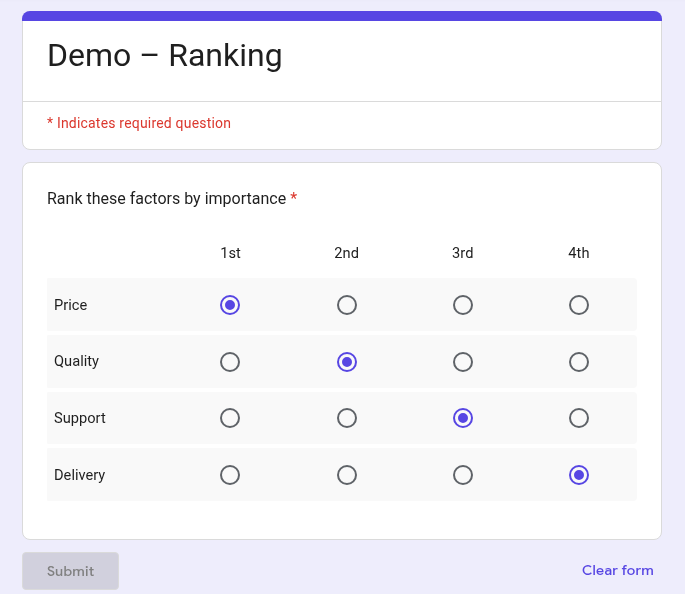
Here’s what we saw in Preview with this setup on November 5, 2026:
- Same rank on two rows. When Price and Quality were both set to 1st, both stayed selected and the question showed, in red: “Please don’t select more than one response per column”.
- A row left empty. With Delivery left without a rank, the message was “This question requires one response per row”.
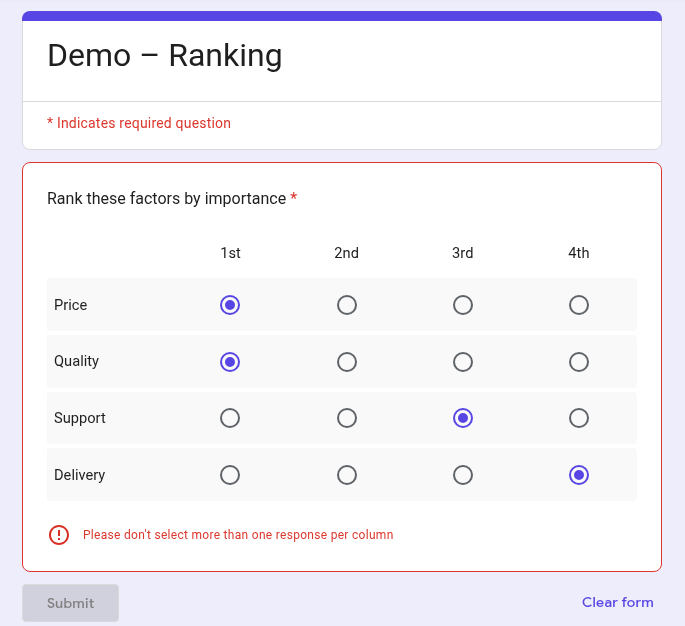
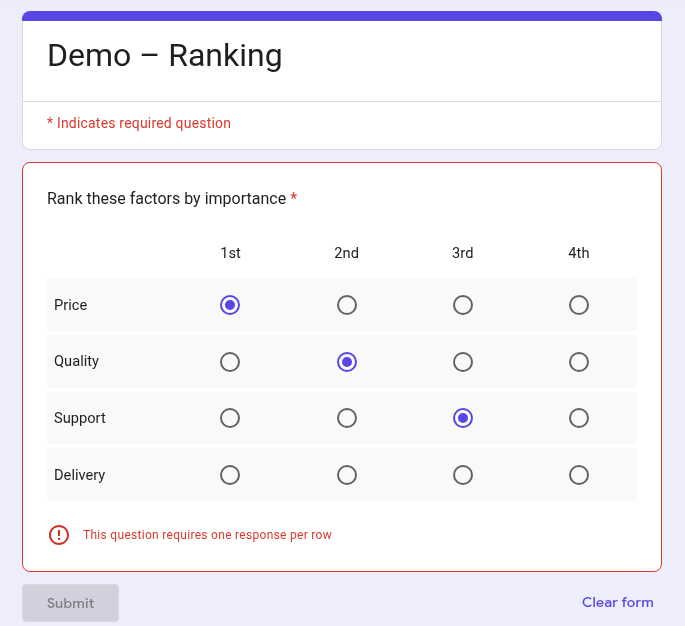
The Submit button is disabled in Preview, so we couldn’t check what happens on a real submission. Google’s Help says responders who break these rules get an error message and can’t continue (Google Docs Editors Help); send a test response from the live form before you share it widely.
How to read ranking results
In the Responses tab. Click Responses at the top of the form. You can view a Summary of all answers, answers by Question, or each Individual response. The summary only appears once the form has at least one response (Google Docs Editors Help). Check the Summary chart after a test response to see how your ranking grid is displayed.
In Google Sheets. In the Responses tab, click Link to Sheets to send answers to a new or existing spreadsheet (Google Docs Editors Help).
As a CSV. In the Responses tab, click More, then Download responses (.csv) (Google Docs Editors Help).
Google’s Help doesn’t document the exact column layout for grid answers in Sheets or CSV. Submit a test response from Preview, open the linked sheet, and check how the ranks appear before you write formulas. If your ranks are labels like “1st”, you may need to convert them to numbers before averaging.
Alternatives to a ranking grid
A grid isn’t the only option. Depending on what you need, one of these may fit better.
One dropdown per rank
Create one question per position (“Your 1st choice”, “Your 2nd choice”…), each a Dropdown with the same list of items (Google Docs Editors Help). This works well on phones and for long lists, since the options stay collapsed. The catch: nothing stops someone from picking the same item twice, so you’ll need to clean duplicates afterwards. See how to add a dropdown in Google Forms.
Rate instead of rank
Sometimes you don’t need a strict order. If you want to know how important each item is, not which beats which, use:
- a multiple choice grid without “Limit to one response per column”, so several items can share the same score;
- a linear scale for a single item scored from, say, 1 to 5. See our guide to the linear scale in Google Forms.
Pick the top few
If you only care about favorites, a Checkboxes question with response validation, or a checkbox grid in Google Forms, can capture “select your top 3” without ordering them. For the full list of formats, see our guide to different question types in forms.
Limits of ranking in Google Forms
- No drag-and-drop. Respondents click radio buttons in a table; they can’t drag items into order like in a dedicated ranking question.
- Long lists get hard. Every extra item adds a row and a column. A large grid is tiring to fill and awkward on a phone screen. Keep rankings short, or rank only the top few positions with dropdowns.
- Ranks must match items. With Require a response in each row and Limit to one response per column both on, you need at least as many columns as rows, or respondents can’t complete the question. If you only want the top 3 of 8 items, don’t require every row, or use one dropdown per rank instead.
- No combined ranking in the form. The Responses tab shows the answers given for each row; to get an average rank or a weighted score, compute it in Sheets.
FAQ
Can I add a ranking question to my Google Forms?
Not as a native type: Google’s list of question types has no ranking option (Google Docs Editors Help). Build one with a Multiple choice grid: items as rows, ranks as columns, Limit to one response per column and Require a response in each row turned on (Google Docs Editors Help).
Can Google Forms do ranked choice?
You can collect ranked preferences with the grid method above: each respondent gives every option a unique rank. The Responses tab shows answers per question and per response; it doesn’t present a combined ranking or a ranked-choice result. To get one, link the responses to Sheets and compute it there.
How do I add a rating option in Google Forms?
Use the Rating or Linear scale question type for one item (both appear in the question-type menu). For several items on the same scale, use a Multiple choice grid with your rating labels as columns and leave Limit to one response per column off, so items can share a score (Google Docs Editors Help).
How do I write a good ranking question?
State the direction (“1 = most important”), keep the list short, use clear and distinct item labels, and give as many ranks as items. Turn on Shuffle row order if you’re worried the first item gets picked more often just for being first.
Sources: Google Docs Editors Help: Choose a type of question for your form, How to set rules for your form, View & manage form responses. Checked November 5, 2026.