How to Add Dropdown in Google Forms (Step by Step + Tips)
How to add dropdown in Google Forms: pick the Dropdown question type, enter options, make it required, send people to sections by answer, and know its limits.
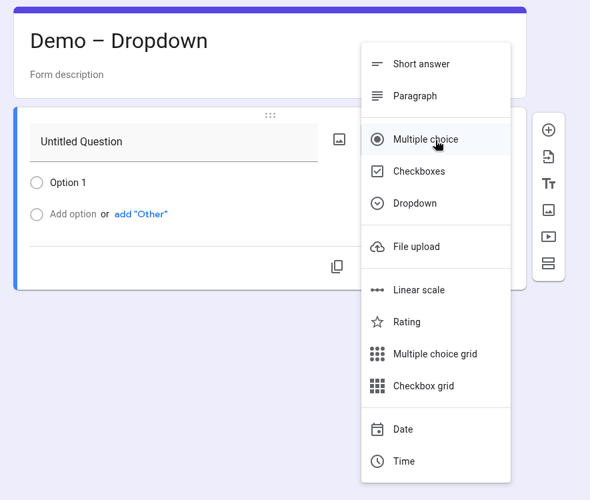
Here is how to add dropdown in Google Forms: open your form, click Add question, open the question-type menu to the right of the question title, choose Dropdown, then type one option per line. Respondents see a collapsed list and can pick only one option (Google Docs Editors Help).
That’s the whole feature in one sentence. The rest of this guide covers the settings around it, how a dropdown compares with multiple choice and checkboxes, how to send people to different sections based on their answer, and what a dropdown can’t do.
Quick answer
- Open a form in Google Forms.
- On the right, click Add question (the plus icon).
- To the right of the question title, open the question-type menu and choose Dropdown.
- Type your options, one per line.
- Optional: turn Required on.
These steps follow Google’s page on question types (Google Docs Editors Help).
How to add a dropdown in Google Forms, step by step
1. Create the question
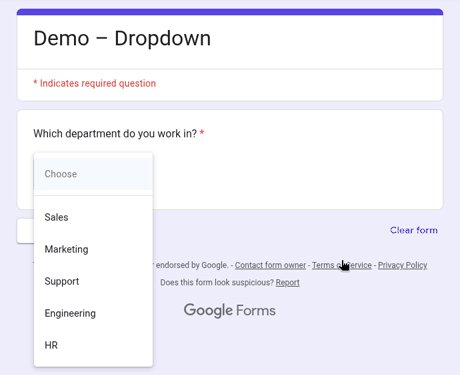
Open your form, click Add question on the right, and type the question in the question title field, for example “Which department do you work in?”. Then open the question-type menu to the right of the title and choose Dropdown.
If you’re not sure a dropdown is the right format, our overview of the types of survey questions explains when each one fits.
2. Add the options
Below the question, type the first option, then add the next one. Keep each option short and make sure they don’t overlap: because a dropdown accepts only one answer, two options that could both be true (“Marketing” and “Marketing & Sales”) will confuse respondents.
Google’s Help does not list an “Other” option for dropdowns. It mentions “Other” (with a short typed answer) for multiple choice and checkboxes only (Google Docs Editors Help). If you need a free-text fallback, add a separate short-answer question after the dropdown.
3. Make it required
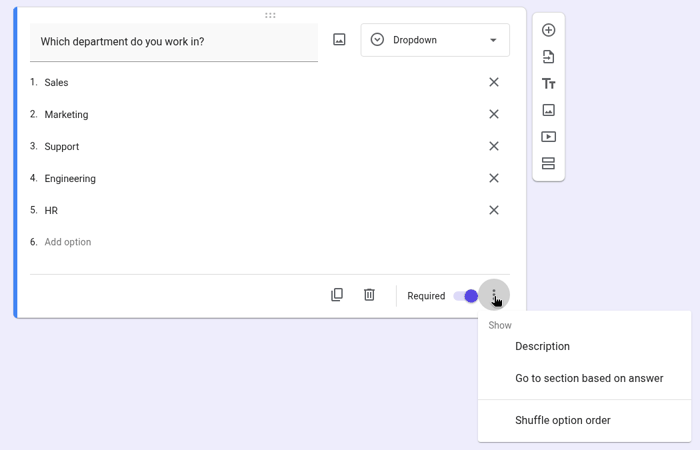
To force an answer, turn Required on at the bottom of the question card (Google Docs Editors Help). Without it, people can skip the question and submit the form.
4. Extra settings under More
Click More (⋮) at the bottom right of the question card. In our test on October 29, 2026, the dropdown’s menu showed Show > Description and Go to section based on answer, then, after a separator, Shuffle option order.
- Description adds a help line under the question (Google Docs Editors Help).
- Go to section based on answer routes respondents by their choice (see below).
- Shuffle option order mixes the order of the options for respondents. It’s useful against order bias in opinion questions; leave it off for lists people scan in a logical order, like countries or sizes.
Google’s response-validation rules are documented for short answer, paragraph, checkbox and grid questions, not for dropdowns (Google Docs Editors Help). If you need format checks on typed answers, see our guide to response validation in Google Forms.
Pasting a long list of options
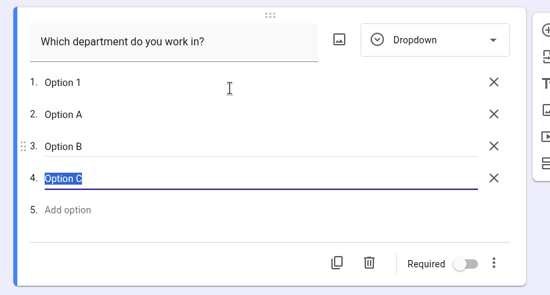
Long lists (countries, products, locations) are where dropdowns shine, so can you paste them instead of typing each option? Google’s Help doesn’t document it, so we tested it on October 29, 2026: pasting a multi-line list into the empty “Add option” field created one option per line. The existing “Option 1” stayed in place, so delete it (or paste over it first) if you don’t need it.
To paste a long list cleanly:
- prepare it in a document or sheet, one option per line, with no duplicates or empty lines;
- click Add option on a fresh dropdown, paste, then remove the leftover “Option 1”;
- preview the form and open the list to check every option appears once, in the right order.
We pasted a short list only; we didn’t test a maximum number of options.
Dropdown + “Go to section based on answer”
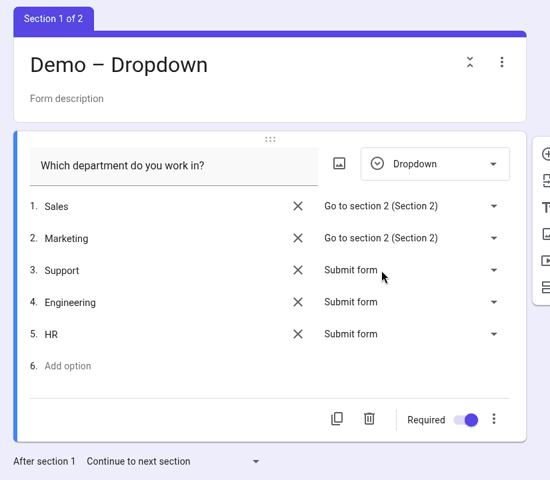
A dropdown can route people to different parts of the form. Google’s branching page says “Go to section based on answer” is only available for Multiple choice and Dropdown question types (Google Docs Editors Help).
To set it up:
- Split your form into sections: click Add section for each part you want to route to.
- On the dropdown question, click More (⋮) at the bottom right, then Go to section based on answer.
- Next to each option, choose where people go next. In our test the choices were Continue to next section, Go to section N (with the section’s name) and Submit form, which ends the form for that answer.
You can also set at the bottom of each section which section comes next, independent of any answer (Google Docs Editors Help).
Dropdown vs multiple choice vs checkboxes
All three present a fixed list of options. The difference is how many answers people can give and how the list is displayed.
| Dropdown | Multiple choice | Checkboxes | |
|---|---|---|---|
| Answers per respondent | One | One | One or more |
| “Other” option with typed answer | Not listed in Google’s Help | Yes | Yes |
| Go to section based on answer | Yes | Yes | Not listed on Google’s branching page |
| Options visible without a click | No, the list opens on click | Yes | Yes |
| Best for | Long lists of mutually exclusive options | Short lists (you want people to see every option) | “Select all that apply” |
Sources: Google Docs Editors Help 7322334 and 141062. The “best for” row is our editorial advice.
For several items rated on the same set of options, a grid is usually better: see our guide to the checkbox grid in Google Forms. For ratings on a numeric scale, use a linear scale question instead of a dropdown of numbers.
Limits of the Google Forms dropdown
Based on Google’s documentation:
- One answer only. Google describes the dropdown as letting responders “choose only one option” (Google Docs Editors Help). There is no native multi-select dropdown; if people need to pick several items, use Checkboxes.
- No dependent (cascading) dropdown. None of the three Help pages describes options in one dropdown that change based on another answer. The documented workaround is branching: send each answer to its own section with its own dropdown (Google Docs Editors Help). For a country → city flow, that means one section per country.
- No “Other” option documented, unlike multiple choice and checkboxes.
- No response validation documented for dropdowns (Google Docs Editors Help).
If these limits block your form, for example you need a searchable list or options loaded from a spreadsheet, look at our roundup of Google Form alternatives.
Where to read dropdown responses
Respondents see the dropdown collapsed, with the placeholder Choose, and open it to pick one option.
To read the answers, open the form and click Responses at the top. The summary tab appears once the form has at least one response. For the raw data, click Link to Sheets at the top right of the Responses tab, or use More > Download responses (.csv) (Google Docs Editors Help). Note that an unpublished form can’t accept responses, so publish it before testing a real submission.
Before you share the form, submit one test response and check both views. It takes a minute and catches typos in your options.
FAQ
How do I add a dropdown in Google Forms?
Click Add question, open the question-type menu to the right of the question title, choose Dropdown, and type one option per line. Turn on Required if everyone must answer. To add many options at once, paste a multi-line list into the empty “Add option” field.
Can a Google Forms dropdown allow multiple answers?
No. Google’s Help says responders can choose only one option in a dropdown. Use Checkboxes if people should select several answers.
What’s the difference between multiple choice and dropdown in Google Forms?
Both accept one answer and both support “Go to section based on answer”. Multiple choice shows every option on the page and can include an “Other” option; a dropdown hides the list until it’s clicked, which keeps long lists compact.
Can I make one dropdown depend on another?
Not natively. The documented approach is to use “Go to section based on answer” on the first dropdown and put the second dropdown in a different section for each answer.
Can I add an “Other” option to a dropdown?
Google’s Help lists “Other” for multiple choice and checkboxes, not for dropdowns. Add a short-answer question after the dropdown instead, or use multiple choice.
Sources: Google Docs Editors Help: Choose a type of question for your form, How to set rules for your form, Show questions based on answers, View & manage form responses. Dropdown menu, paste and preview behaviour tested by our team on October 29, 2026. Checked October 29, 2026.