Checkbox Grid Google Forms: How to Add, Limit and Read Responses
Checkbox grid in Google Forms lets people tick several boxes per row. Learn how to add one, use its three options, read the responses and avoid common mistakes.
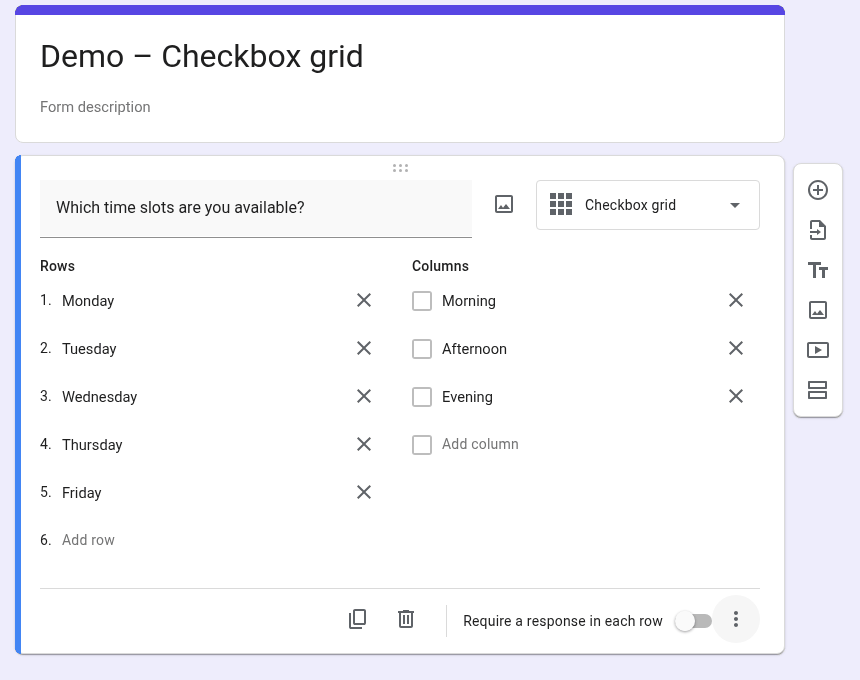
A checkbox grid in Google Forms is a question laid out as a table: you write rows (the items) and columns (the answer options), and respondents can tick one or more boxes in each row. To add one, click Add question, open the question-type menu to the right of the question title, choose Checkbox grid, then fill in your rows and columns (Google Docs Editors Help).
Three optional settings control it: Require a response in each row, Limit to one response per column and Shuffle row order (Google Docs Editors Help).
What a checkbox grid is
A checkbox grid combines two ideas you already know from other question types:
- Rows are the things you’re asking about, for example weekdays, products or team members.
- Columns are the choices that apply to each row, for example time slots, features or tasks.
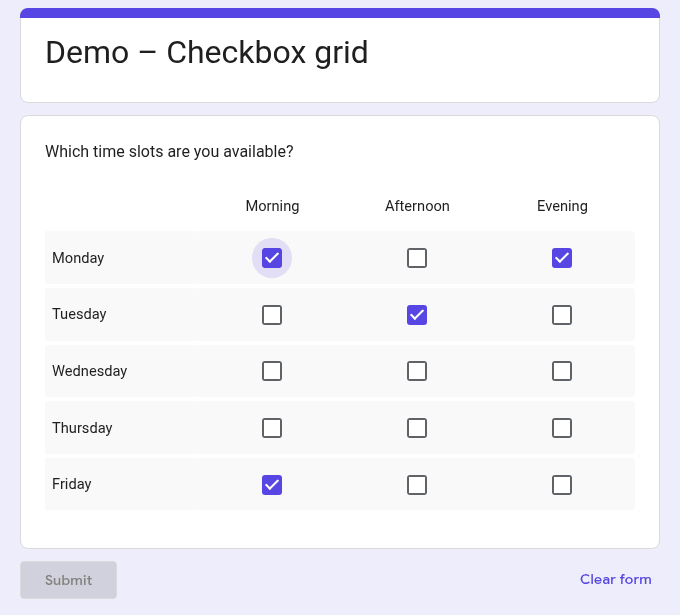
- Each cell is a checkbox, so a respondent can tick several columns in the same row, or none, unless you require an answer.
Google’s question-type page describes it as a grid “where responders can select one or more answers per row”, “often used to rate a category of options” (Google Docs Editors Help).
In survey design, this layout is usually called a matrix question. For when a matrix helps and when it hurts, see our guide on how to use a matrix question effectively. For an overview of every format, read our guide to the different question types in forms.
How to add a checkbox grid in Google Forms
- Open your form in Google Forms.
- Click Add question (the plus icon in the floating toolbar on the right).
- Type your question in the Question field.
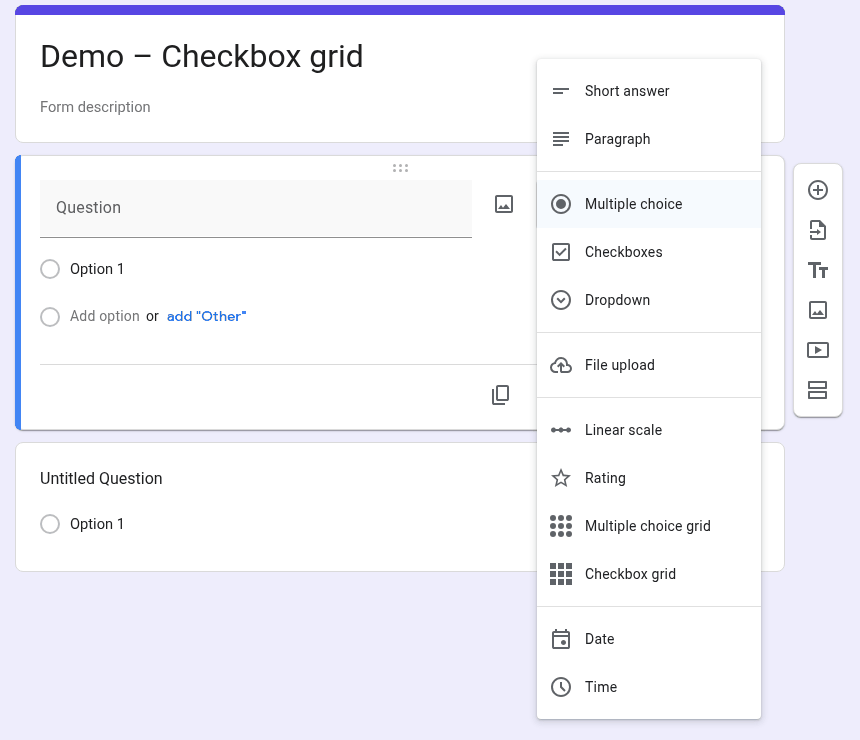
- To the right of the question title, open the question-type menu and choose Checkbox grid.
- Under Rows, add one item per line (for example: Monday, Tuesday, Wednesday).
- Under Columns, add the options (for example: Morning, Afternoon, Evening).
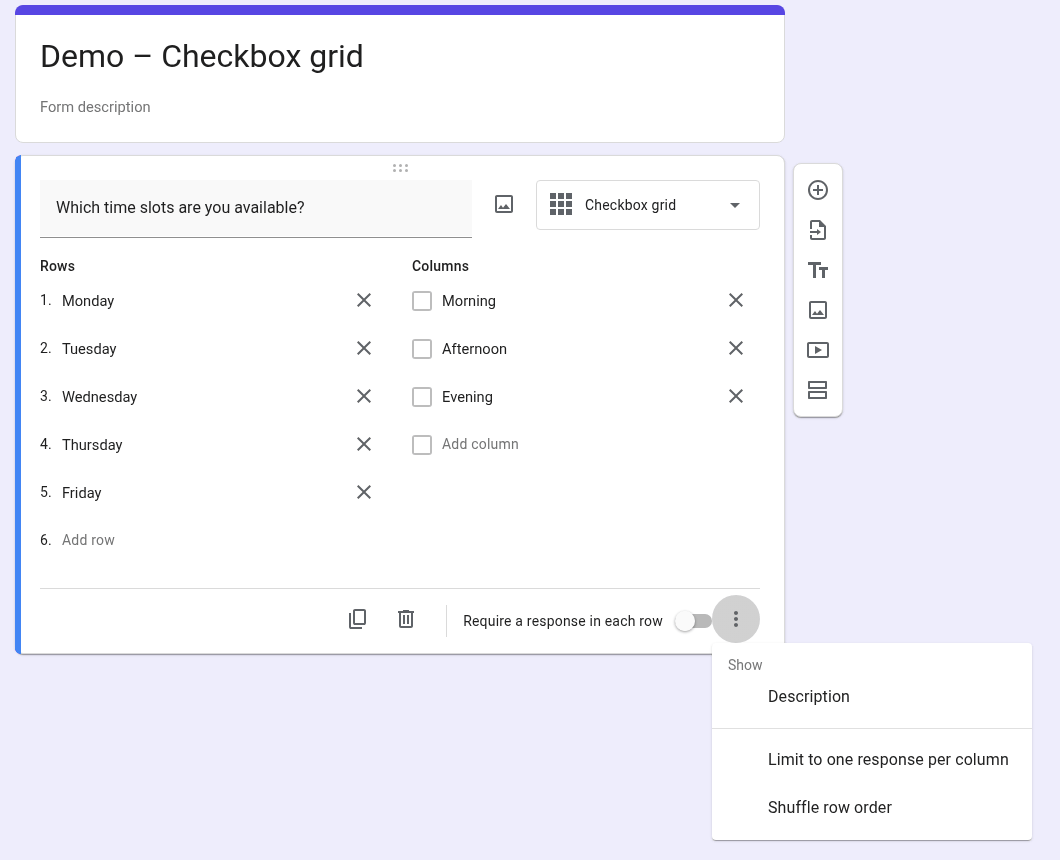
- Optional: turn on the Require a response in each row toggle in the question footer, at the bottom of the card.
- Optional: click More options (⋮, bottom right of the card). The menu contains Show > Description, Limit to one response per column and Shuffle row order.
These steps follow Google’s own instructions for setting up grid questions (Google Docs Editors Help).
Checkbox grid vs multiple choice grid
Both question types use the same rows-and-columns layout and the same three options. The difference is in each cell: radio buttons in a multiple choice grid, checkboxes in a checkbox grid.
| Checkbox grid | Multiple choice grid | |
|---|---|---|
| Answers per row | One or more | One |
| Control in each cell | Checkbox | Radio button |
| Typical use | “Which of these apply?” for each row (availability, features used, skills) | Rating or picking a single level for each row (satisfaction, frequency) |
| Require a response in each row | Yes | Yes |
| Limit to one response per column | Yes | Yes |
| Shuffle row order | Yes | Yes |
Sources: Choose a type of question for your form and How to set rules for your form, Google Docs Editors Help.
One thing to know if you read Google’s Help yourself: the rules page states that in multiple choice grid questions responders can only choose one column per row, and the checkbox grid section of the same page repeats that sentence word for word. Treat it as a copy of the multiple choice grid text. Google’s question-type page and the checkboxes in the editor both show that a checkbox grid accepts several answers per row.
If you want a rating for each row, a multiple choice grid is usually the better fit. For a single rating, look at a linear scale in Google Forms instead.
Checkbox grid options
Google documents three options for grid questions (Google Docs Editors Help).
Require a response in each row
Turn on the Require a response in each row toggle in the question footer. It isn’t in the ⋮ menu. If a respondent leaves a row empty, they get an error message and can’t continue.
Use it when every row matters, for example when you need availability for every day of the week. Leave it off when some rows may genuinely not apply. Otherwise, people tick random boxes just to move on.
Limit to one response per column
Click More options (⋮, bottom right of the card), then check “Limit to one response per column”. Each column can then be ticked in only one row. With rows A, B, C and columns 1, 2, 3, respondents choose one row item for each column. If they tick the same column in several rows, they get an error message.
This is useful for assigning things without double-booking, such as one person per task or one session per time slot.
Shuffle row order
Click More options (⋮), then check “Shuffle row order”. The rows appear in a different order each time someone opens the form. Leave it off when the order carries meaning, such as days of the week.
How checkbox grid responses appear
In the Responses tab. Open the form and click Responses at the top. The Summary view only appears once there’s at least one response, and you can also view responses by question or by person (Google Docs Editors Help).
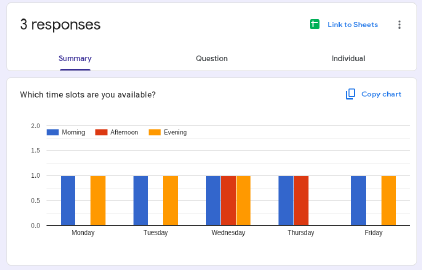
In Google Sheets or CSV. In the Responses tab, click Link to Sheets to send answers to a spreadsheet, or download them via More, then Download responses (.csv) (Google Docs Editors Help). Google’s Help doesn’t document the exact column layout for grid answers, so check your linked sheet with a test response from Preview before building formulas on it. In our test, the linked sheet had one column per grid row, with headers in the format “Question [Row]”.
![Google Sheets linked to a form, with one column per checkbox grid row and headers like Which time slots are you available? [Monday]](/images/blog/checkbox-grid-google-forms/checkbox-grid-linked-sheet-columns-per-row.png)
Limits and common mistakes
No per-row limit and no response validation. A checkbox grid has no native way to set a minimum or maximum number of boxes per row, and Response validation isn’t offered for this question type: Google’s rules page lists it only for short answer, paragraph and checkbox questions (Google Docs Editors Help). If you need limits, you have two workarounds: switch to a multiple choice grid (exactly one answer per row), or ask one checkbox question per row and use response validation in Google Forms (for example “Select at most 2”).
Common mistakes:
- Too many rows. A long grid is tiring, and people start ticking patterns. Split it into two questions or use sections.
- Columns that aren’t parallel. Columns should be the same kind of thing, all time slots or all features. Mixing “Yes”, “Weekly” and “N/A” confuses respondents and your analysis.
- Requiring every row when rows don’t apply to everyone. This forces fake answers. Add a “Not applicable” column or leave the question optional.
- Using a checkbox grid when you want a rating. Several boxes per row make ratings meaningless. Use a multiple choice grid.
- Limiting to one response per column with more rows than columns. If every row is required, there won’t be enough columns to go round and respondents may be blocked. Test it in Preview.
Use cases
- Availability: rows are days, columns are time slots. Respondents tick every slot they’re free.
- Event registration: rows are workshop sessions, columns are formats (in person, online, recording). Use Limit to one response per column only if each format can go to one session.
- Product or feature usage: rows are products, columns are features. Respondents tick the features they use in each product.
- Task assignment: rows are team members, columns are tasks, with Limit to one response per column so no task is taken twice.
If grid questions aren’t flexible enough, for example if you need per-row limits or conditional rows, see our roundup of Google Form alternatives.
FAQ
Can respondents select more than one box per row in a checkbox grid?
Yes. That’s the point of the checkbox grid: Google describes it as letting responders select one or more answers per row. If you want exactly one answer per row, use a multiple choice grid.
How do I make every row required?
Turn on the Require a response in each row toggle on the question card. Respondents who leave a row empty get an error and can’t continue.
Can I limit how many boxes someone ticks in each row?
No. A checkbox grid has no native per-row limit and doesn’t offer response validation. Use a multiple choice grid for one answer per row, or split the grid into one checkbox question per row and add response validation to each.
What does “Limit to one response per column” do?
Each column can be ticked in only one row. With rows A, B, C and columns 1, 2, 3, a respondent who ticks column 1 in both A and B gets an error message.
How do checkbox grid answers look in Google Sheets?
Click Link to Sheets in the Responses tab to send them to a spreadsheet. Google’s Help doesn’t document the exact layout for grid answers, so submit a test response and check the sheet before you build formulas on it.
Sources: Google Docs Editors Help: Choose a type of question for your form, How to set rules for your form, View & manage form responses. Checked October 26, 2026.