Designing a Contact Form That Actually Converts
Learn practical form optimization strategies in this AgentsForForms guide: Designing a Contact Form That Actually Converts.
Designing a contact form is all about creating a simple, intuitive path for people to connect with you. This means figuring out your goals, choosing only the essential fields, and using a clean layout with helpful little hints to guide users along the way. Get this right, and you'll see a real difference in how many people successfully get in touch.
Why Your Contact Form Is More Than Just Fields on a Page

Let’s be honest, most contact forms feel like an afterthought. They're a necessary, but often uninspired, part of a website. But what happens when we start treating the contact form as the critical conversion tool it truly is? This guide reframes form design as a strategic asset for growth. We're moving past the basics of just "collecting information" to show you how thoughtful design can capture high-quality leads.
The High Cost of a Poorly Designed Form
A frustrating or confusing form doesn't just annoy users; it directly hurts your bottom line. Every time someone gives up and leaves, you're losing a potential sale, a support opportunity, or valuable feedback. The stakes are surprisingly high, and every single detail matters.
The numbers don't lie. Research shows that only 9% of visitors who even see a contact form end up completing it. Other studies have found that just adding a phone number field can tank conversions by 5%. And if you take more than 10 minutes to respond? That can slash your chances of converting that lead by a staggering 400%. You can discover more insights about these contact form statistics and see just how big their impact is.
A contact form isn't a barrier between you and your audience—it's the bridge. Every field, button, and instruction should be designed to make crossing that bridge as effortless as possible.
From Chore to Conversation
This guide is packed with actionable advice that product managers, marketers, and support teams can put to use immediately. We’ll walk through how to transform your form from a data-entry chore into a seamless experience that feels more like starting a conversation.
Here’s what a strategic approach to form design really gets you:
- Reduces Friction: You get rid of the unnecessary steps and confusing questions that make people bounce.
- Builds Trust: Clear language, a professional look, and transparency about data make users feel secure.
- Captures Better Leads: By asking the right questions at the right time, you get higher-quality, more relevant information.
Tools like AgentsForForms can streamline this whole process, turning simple prompts into high-performing forms that are built for conversions from the get-go. It's time to start seeing your contact form as a high-leverage opportunity for growth.
Figuring Out Your Form's Job and What to Ask
Before you even think about dragging and dropping fields, take a step back and ask yourself one simple question: "What is this form’s real job?" Seriously. Without a crystal-clear goal, your form will turn into a junk drawer of "nice-to-have" questions that just tank your conversion rates.
Is its purpose to grab a hot sales lead? Log a detailed support ticket? Or is it just to get someone on your newsletter list? Pinning down this one primary objective is the bedrock of good form design. It influences every single choice you make, from the questions you ask to how you lay them out. A form to book a demo needs a totally different approach than one for downloading a PDF.
Start with the Bare Essentials
Once you know your goal, it's time to get ruthless with your fields. Every single question you add is another little piece of friction, another tiny reason for someone to just give up and leave. Think of each field as a small tax on your user's time and attention. Your job is to make that tax as low as humanly possible.
Ask yourself: "What is the absolute minimum I need right now to get the job done?" For a new lead, maybe it’s just a name and an email. For a support request, it might just be an email and a quick description of the problem. You can figure out the rest later.
This isn’t just a hunch; it's backed by solid data. Studies consistently show that forms with 5 or fewer fields can have conversion rates 120% higher than forms that ask for more. Each extra field is another hurdle, and they add up faster than you think. You can dig into some of the research on these conversion findings to see for yourself.
The best contact form is almost always the shortest one. Make every field fight for its place. If it doesn't directly serve the form's main goal, get rid of it.
Remember, you can always ask for more information down the road. This is often called progressive profiling—you gather more details as your relationship with the person deepens. Start with the basics and build from there.
The Required vs. Optional Field Dilemma
Deciding what's truly essential versus what's just "nice to know" is a constant battle. Making the wrong call can mean the difference between a new lead and an abandoned form. Here's a quick way to think through it for different scenarios.
Required vs Optional Fields Decision Matrix
This matrix is a practical guide to help you decide which fields are truly essential for different form types, balancing data needs against user friction.
| Field Type | When It's Required | When It's Optional | Impact on Conversion |
|---|---|---|---|
| Almost always. It's the primary way to follow up for sales, support, and newsletters. | Very rarely. Maybe for anonymous feedback where no reply is needed. | Low negative impact. Users expect to provide it. | |
| Name | When you need to personalize communication (e.g., sales outreach, support tickets). | For simple actions like newsletter sign-ups or content downloads. | Minor negative impact. First name is less friction than full name. |
| Phone Number | For high-intent sales leads where an immediate call is the next step (e.g., "Request a Quote"). | For almost everything else. It's a high-friction field that people are hesitant to share. | High negative impact. This is a major conversion killer unless absolutely necessary. |
| Company Name | In a B2B context where you need to qualify or route leads based on their organization. | For B2C forms or initial B2B contact where the individual is the focus. | Moderate negative impact. Adds friction and can feel intrusive. |
| Message/Details | For support requests, project quotes, or specific inquiries where context is critical. | For simple lead capture or newsletter sign-ups. | Low negative impact. Users who need to explain something expect this field. |
Ultimately, the less you ask for upfront, the better. Only make a field required if your process completely breaks without that piece of information.
The Big Debate: Single-Step vs. Multi-Step Forms
Okay, you've got your list of essential fields. Now for the big architectural decision: do you show them all at once (single-step), or break them into a series of smaller, more digestible chunks (multi-step)? The right answer really depends on how much you're asking for.
- Single-Step Forms: These are your go-to for simple, low-effort tasks. Think newsletter sign-ups or a basic "get in touch" form with just 2-4 fields. They're fast, direct, and get the job done with zero fuss.
- Multi-Step Forms: When you need to ask more than five or six questions, breaking them up is a game-changer. It feels way less overwhelming for the user. This approach cuts down on cognitive load and taps into a powerful psychological trigger called the "sunk cost fallacy"—once someone starts a process, they're much more likely to see it through to the end.
Multi-step forms are perfect for more involved things like event registrations, detailed quote requests, or new client onboarding. The progress bar you often see at the top gives people a sense of accomplishment and shows them the light at the end of the tunnel, which is a huge motivator.
Modern tools like AgentsForForms make it incredibly easy to build these conversational, multi-step experiences that guide users through a process instead of hitting them with a wall of questions. Even better, you can use smart branching to ask more relevant questions based on their previous answers. You can learn more about this in our guide on building forms with conditional logic.
At the end of the day, it's a balancing act between your data needs and the user's patience. The only way to know for sure is to test both approaches. You might be surprised to find that a process with more steps can actually lead to higher completion rates, simply because it feels so much easier to get started.
Crafting a User-Friendly Layout and Experience
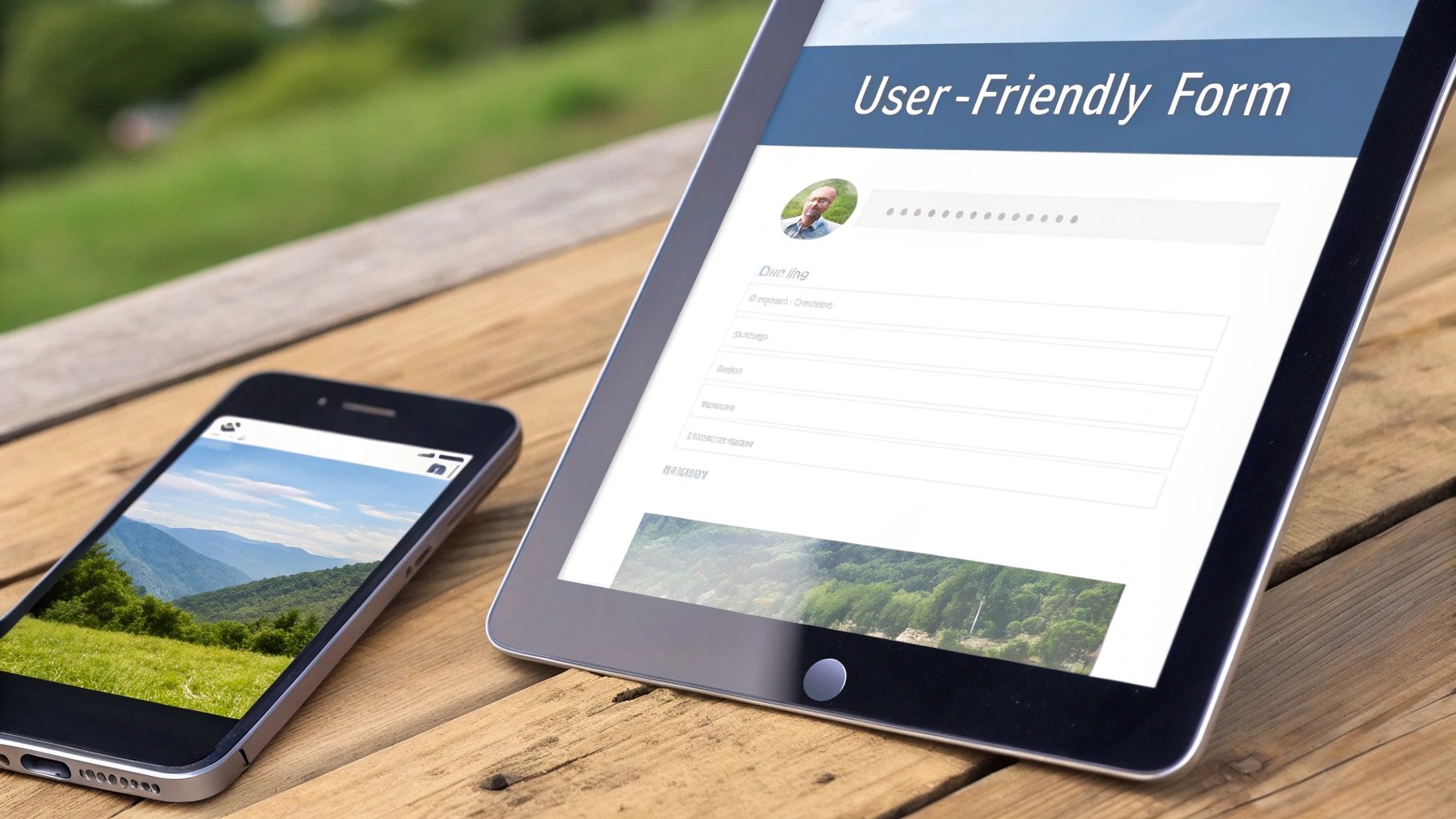
Once you’ve decided which fields are absolutely essential, it's time to arrange them in a way that feels natural and effortless. A great layout is all about creating a clear, predictable path for the user to follow, guiding their eye smoothly from one box to the next. The goal is to make your form feel less like a chore and more like a simple conversation.
The visual structure is the first thing people see, and it instantly sets their expectations. A cluttered, confusing form creates immediate friction. A clean, organized one tells them you respect their time.
Why a Single Column Is Almost Always Better
When it comes to form layouts, simplicity wins every time. For years, designers went back and forth on single vs. multi-column designs, but the data is pretty conclusive now: a single column is almost always the right call. It creates a simple downward momentum that’s just easier for our brains to process.
This is especially true on mobile, which is where most of your users are coming from anyway. A single column is a natural fit for narrow screens, so you avoid all that awkward pinching, zooming, and horizontal scrolling. It’s one clear path from top to bottom, which dramatically reduces a user's cognitive load.
Multi-column layouts just break that flow. The user’s eye has to zigzag across the page, and it's not always obvious which field to fill out next. That confusion leads to mistakes or, worse, they just give up. Stick to one column—it keeps things simple and accessible for everyone.
Grouping Fields for a Logical Flow
Even in a single-column layout, the order and grouping of your fields are critical. Think of your form as a conversation; you want it to flow logically. You can achieve this by clustering related information together.
For example, keep all the personal contact details in one block:
- First Name
- Last Name
- Email Address
- Phone Number (if you really need it)
Then, you can have a separate section for their actual message or inquiry. This simple organization helps users mentally chunk the information they need to provide, making the whole process feel much more manageable. For longer forms, adding subtle headings or visual dividers can also make it seem way less intimidating.
The Power of Clear Labels and Helpful Microcopy
All that little text on your form—the labels, placeholders, and helper text—has a massive impact on usability. This is your microcopy, and it's your chance to guide users, clarify what you need, and prevent errors before they even happen.
Labels vs. Placeholders
One of the most common mistakes I see is using placeholder text (the grayed-out text inside a field) as a label. It might look minimalist and clean, but it's a disaster for usability and accessibility. As soon as someone starts typing, the placeholder vanishes, and they have to rely on memory to know what that field was for.
Always use a static, visible label that sits above the input field. This ensures users never lose context. Reserve placeholder text for showing an example, like "e.g., [email protected]".
Good microcopy can also answer questions before they're asked. Under a password field, for instance, a little helper text like, "Must be at least 8 characters with one uppercase letter," can save a lot of frustration and validation errors.
Ditching "Submit" for a Better Call to Action
The final piece of the puzzle is your call-to-action (CTA) button. This is the last thing a user interacts with, and it needs to be compelling. Honestly, the word "Submit" is functional, but it’s completely uninspiring and a bit demanding.
Your CTA button is an opportunity to communicate the value the user gets in return for their effort. It reinforces the goal and tells them what happens next.
Here’s how you can reframe it:
- Instead of "Submit," try "Get My Free Audit."
- Instead of "Send," try "Schedule My Demo."
- Instead of "Subscribe," try "Join the Community."
This simple word change frames the action as a win for the user, not just a data handoff for you. It's that final, powerful nudge that can make a real difference in your conversion rates. Some tools, like AgentsForForms, even offer templates with these kinds of conversion-focused CTAs built right in, which can save you a lot of guesswork.
5. Get Clean Data with Smart Validation and Spam Protection

A form that looks great is only half the battle. To be truly effective, it has to collect clean, usable data. This is where the behind-the-scenes magic of smart validation and spam protection comes into play, ensuring you get quality submissions without making users jump through hoops.
Think of it like this: a form without these safeguards is like leaving your front door wide open. You’ll get all sorts of junk, from simple typos to malicious spam. Good validation is the friendly doorman who gently guides legitimate visitors while keeping bots out.
Give Users Instant Feedback with Inline Validation
One of the best user experience upgrades you can make to your form is adding inline validation. Forget the old, frustrating method where a user fills everything out, hits "submit," and only then gets hit with a list of everything they did wrong. Instead, this approach gives them feedback in real time, right after they complete a field.
Imagine typing in your email and a small green checkmark appears. It’s a tiny, reassuring signal that you're on the right track. On the flip side, if you make a mistake, a subtle red outline and a helpful message like, “Oops, please enter a valid email,” pop up instantly. This allows people to fix issues on the fly, one at a time, which is far less intimidating than facing a wall of errors. To guide users proactively, consider implementing real-time form validation and watch your completion rates improve.
Inline validation turns error correction into a helpful, interactive process rather than a final judgment. It respects the user's time and significantly reduces the chances of them abandoning your form out of frustration.
Validating email addresses is a fantastic place to start. It’s a simple but powerful way to make sure you're collecting usable contact info. For a deeper dive, our guide on this topic breaks down how to validate email addresses in 3 steps.
Keep Your Inbox Clean Without Annoying Users
We’ve all been there—a website form makes us prove we’re human by deciphering squiggly letters or clicking on every picture of a traffic light. While these old-school CAPTCHAs can work, they create a massive amount of friction and can drive real, interested users away.
Thankfully, modern spam protection has evolved. The focus has shifted from making humans prove they're human to making bots reveal they're bots, and the best methods are completely invisible to your users.
Here are two of my favorite user-friendly techniques:
- Honeypot Fields: This is a clever trick. You add a field to your form that’s hidden from human visitors but visible to spam bots. Since bots are programmed to fill out every field they find, they’ll fall right into the trap. Your form’s logic can then automatically reject any submission where that hidden “honeypot” field has an entry. Simple and completely invisible.
- reCAPTCHA v3: This is Google’s modern, background-only solution. It analyzes user behavior on your site—things like mouse movements and typing speed—to assign a score indicating the likelihood that they’re human. No puzzles, no clicks required. Submissions with suspiciously low scores can be flagged or blocked automatically, leaving your legitimate users completely undisturbed.
By using these modern techniques, you protect your inbox while keeping the experience smooth and professional. Always prioritize solutions that are invisible to the user. The goal is to make it easy for people to reach you, and that means removing every obstacle you can.
Measuring Performance with Analytics and A/B Testing
Getting your form live isn’t the finish line—it’s the starting block. Your first draft is really just an educated guess. The real improvements begin when you stop assuming what users want and start listening to what their actions are telling you. This is how a decent form becomes a conversion machine.
Think of analytics as your direct line to the user experience. By tracking the right numbers, you can pinpoint exactly where people are succeeding and, more importantly, where they’re giving up. This data-first mindset is the key to moving beyond guesswork and into a cycle of constant, meaningful improvement.
Setting Up Your Form Analytics
To get started, you need to track a few core metrics. These numbers tell the story of how people really interact with your form. Without them, you’re just flying blind, hoping for the best.
Here are the non-negotiable metrics you should be watching:
- Completion Rate: This is your north star. It’s simply the percentage of people who start the form and actually hit "submit." A low completion rate is the most obvious sign that something is broken.
- Average Time to Complete: How long is it taking the average person to fill this thing out? If it’s longer than you expected, your form might be confusing, or you might just be asking for too much.
- Field-Specific Drop-Off: This is a goldmine. Good analytics will show you the exact field where most people abandon your form. Is it when you ask for a phone number? Or maybe that "Company Size" dropdown is causing hesitation. This tells you exactly where to focus your attention.
Many modern form builders, like AgentsForForms, have these analytics baked right in. You get an easy-to-read dashboard that flags these key performance indicators, helping you spot trouble without having to manually set up a bunch of complex tracking events.
The Power of A/B Testing Your Form
Once your analytics have pointed out a problem area, A/B testing is how you find the solution. The process is simple: you create two versions of your form—the original (your "control") and a new version with a change (the "variant"). Then, you show each version to a different segment of your audience to see which one performs better.
The golden rule of A/B testing? Change only one thing at a time. If you change the button color, the headline, and the number of fields all at once, you’ll have no idea which change actually drove the result.
A/B testing removes ego and opinions from the design process. It lets your users tell you, with their actions, what works best. It’s the most reliable way to make impactful improvements.
Let's look at a real-world example. A B2B software company had a long, single-page "Request a Demo" form. Their analytics showed a huge drop-off right in the middle. They hypothesized that the form's length was intimidating users, so they decided to test a multi-step version against their original single-page form.
The new version broke the same questions into three quick, manageable steps, complete with a progress bar. The result? A 40% lift in qualified leads. The information they collected was identical, but the improved user experience made all the difference.
This kind of iterative testing is the heart and soul of Conversion Rate Optimization (CRO). For anyone looking to go deeper, we've put together a guide with 10 actionable conversion rate optimization tips for forms to spark ideas for your next test.
Finally, understanding industry benchmarks gives you valuable context. Across B2B, the median form conversion rate sits around 2.9%, but that number can swing wildly depending on the traffic source. Referral traffic often converts at a much higher rate than traffic from a social media ad, for instance. This is why you need to analyze your form's performance by channel.
You can explore detailed reports on B2B conversion rates to see how your numbers stack up. By combining solid analytics with methodical A/B testing, you create a powerful feedback loop that will consistently improve your form’s ability to capture leads and fuel your growth.
Connecting Your Form to Automate What Happens Next

Getting a form submission is great, but it's just the first step. What happens in the moments after a user hits "submit" is where the real work begins, and it's your best chance to make a fantastic first impression. This is about starting a conversation, not just collecting data.
An automated workflow is your secret weapon here. Instead of manually sifting through your inbox and copy-pasting details into a spreadsheet, you can build a system that does the heavy lifting for you. This gives your team the freedom to focus on what they do best: responding to people quickly and thoughtfully.
Building Your Post-Submission Engine
The real goal is to plug your form directly into the tools your team already lives in every day. This simple act of connection kills manual data entry, slashes the risk of human error, and makes sure no lead ever slips through the cracks.
Here are a few essential connections I always recommend setting up:
- Instant Team Notifications: The second a lead comes in, have an alert fire off in a dedicated Slack channel.
- CRM Integration: Automatically create a new contact or deal in your CRM, whether it's HubSpot or Salesforce, to log the entire interaction from the start.
- Simple Data Logging: For basic tracking, just have each submission added as a new row in a Google Sheet. It's simple, clean, and effective.
Key Takeaway: Speed and reliability are everything. Automating these steps ensures your team can follow up while the lead is still hot, which can make a massive difference in your conversion rates.
To take it a step further, integrating your form with a guide to AI powered workflow automation can completely change how you operate. Tools like Zapier or Make act as the bridge between your form and thousands of other apps, making it surprisingly easy to build some seriously powerful workflows.
Finally, don't forget the user's experience. The very first piece of your automation should be an instant confirmation email. This simple message does two crucial things: it reassures the person their message went through and tells them what to expect next. It’s a small detail that builds immediate trust and sets a professional tone right from the get-go.
Common Questions About Designing Contact Forms
Even with the best plan, you'll run into specific questions when you're in the trenches building a form. I get asked these all the time, so let's tackle the most common ones with quick, straightforward answers to clear up any confusion.
How Many Fields Are Too Many?
There’s no universal magic number, but the data consistently points to one thing: less is more. From what I’ve seen, forms with 5 or fewer fields almost always have the highest completion rates. The second you start adding more, you can practically watch the drop-off happen in real-time.
My advice? Start with the absolute bare minimum you need to get the ball rolling. If it's a sales inquiry, a name and an email might be all it takes. You can always gather more intel once you've started a conversation.
Key Takeaway: Every single field you add is a point of friction. Make each one fight for its place. If it doesn't directly serve the form's one true goal, cut it.
What Is the Best Color for a Submit Button?
This is a classic question, but there's no single "best" color that works across the board. The most effective color for your call-to-action (CTA) button is simply one that has high contrast against its immediate background while still feeling like a part of your brand.
Think about it this way: the button needs to scream, "Click me!" It should be one of the most visually dominant things on the page. A bright, action-oriented color that pops is usually a good bet. The goal is to draw the user’s eye and make that final step feel like an easy, obvious conclusion.
Should I Use a Multi-Step or Single-Step Form?
This really comes down to how much information you need to collect. There's a time and a place for both.
- Single-Step Forms: These are your go-to for simple, quick asks. Think newsletter sign-ups or a basic "get in touch" form with 2-4 fields. They're fast and to the point.
- Multi-Step Forms: When you need more than five fields, breaking the form up is almost always the right move. It splits a daunting task into small, easy wins for the user. This reduces their mental workload and makes the whole process feel less intimidating, which usually leads to more people actually finishing it.
If you’re building something complex, like a detailed project quote or an event registration form, a multi-step design is your best friend for a better user experience.
How Can I Add a Form to My Website?
Getting a form onto your website is usually pretty simple these days. Most modern form builders give you an easy way to embed it right on the page.
For example, on a WordPress site, you can often just add a form block or paste in a snippet of code (a shortcode) where you want it to show up. Tools like AgentsForForms make it even easier by generating a single line of code. You just copy it, paste it into your site’s HTML, and you're good to go. No fuss, no complicated setup—just copy, paste, and publish.
Ready to stop guessing and start building forms that actually convert? With AgentsForForms, you can turn a simple prompt into a production-ready, multi-step form in seconds. Our AI-powered platform helps you write clear copy, set up smart validation, and gain insights from real-time analytics. Create your first form for free at AgentsForForms.